SquaredUp notifications can help you do more than just fire an alert when something goes wrong. Every time a monitor changes state, it sends a payload to your destination. This is standard webhook behavior, and it means you can use that data to do more than just create alerts, you can also automatically close them.
When you connect SquaredUp to an incident management tool, each state change arrives as a fresh payload. By default, a new alert get created for each state change notification. So, when a tile goes from Success to Error, you get an alert. When it recovers back to Success, you get another alert instead of the first one closing. So you end up with truck loads of open alerts for monitors that are already back to healthy
But if you configure your destination correctly, you can tell it to match the recovery payload back to the original alert and resolve it automatically.
Here is an example of how to set that up in Rootly.
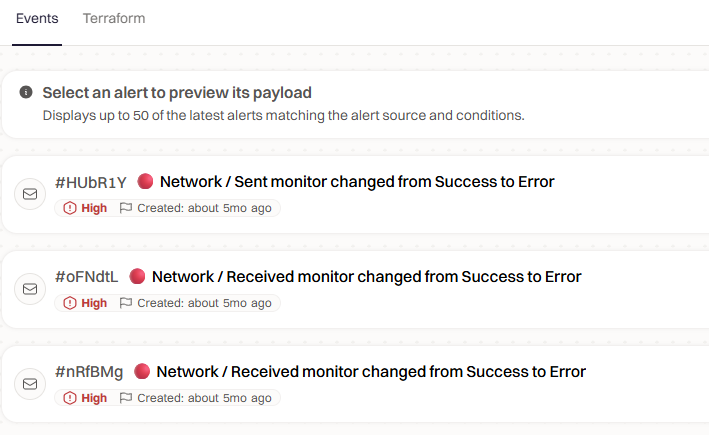
Go to your alert source in Rootly and open the Events tab.
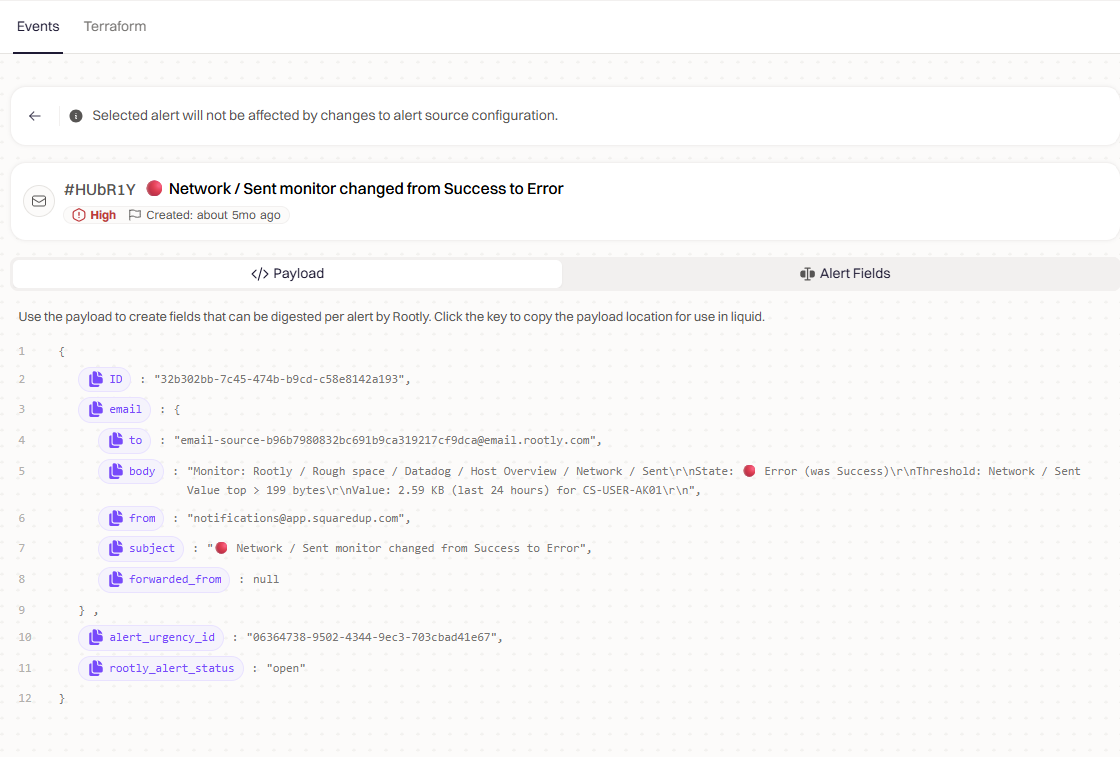
On the right side, open an existing SquaredUp alert in Rootly and check the Payload tab to configure it.
For example, when I open the alert, here is the payload:
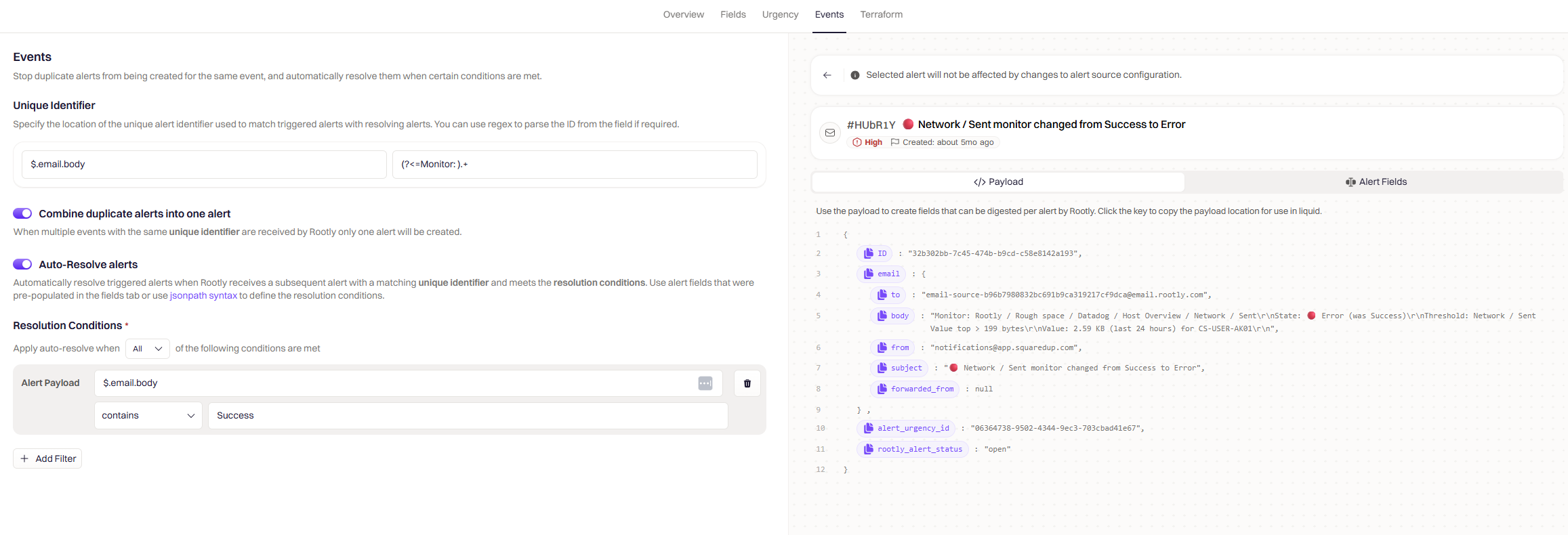
Setting auto-resolve config
There are 3 things to set up here:
1. Unique Identifier
Set the JSONPath to $.email.body and the regex to: (?<=Monitor: ).+
This extracts the monitor name from the body, which stays the same across both the firing and recovery payloads. Rootly uses this to link them together.
2. Combine duplicate alerts
Turn this on so multiple firing payloads for the same monitor don’t stack up as separate alerts.
3. Auto-Resolve alerts
Turn this on and set the condition:
JSONPath : $.email.body
Condition : contains
Value : Success
When a recovery payload comes in with a matching monitor name and that condition is met, Rootly will automatically close the open alert.
Here’s how the configuration looks: